Showing posts with label Schedules. Show all posts

Wednesday, July 29, 2009

Instance Parameters: The Double Agent

This is going to be particularly helpful to those of you working on large projects. Some of you may already be aware of it, but I haven't seen it documented anywhere so here goes...

I call this technique the Double Agent because the Instance Parameters discussed here will temporarily act like Type Parameters under the right conditions. Why would I want an Instance Parameter to act like a Type Parameter? you ask. Well, quite often, but not always we want to apply the same Instance Parameter value (like a comment that is repeated for MOST instances of a Family Type) to many of the same Doors, Windows, Sheets, or other families. Comments are typically Instance Parameters that you have to change one at a time. But I don't want to change comments one at a time when there are so many of the same comment value. I want them to update once and simultaniously like a Type Parameter would, without having to use a Type Parameter (because I may still want one or two comment values to remain unique. Well, how do you do it? The Answer: With Schedules

Here is the procedure. Go to your door schedule for example.


You'll notice that I have four door types (71,66,17,64). I need to add the Remark 1hr rated to types 66 & 64. Rather than enter the value one field at a time for the Instance Parameter called Remark, lets add the value to all 8 fields once and simultaniously. Here's how.

Go to View Properties... Sorting Grouping... Now make a mental note (or write it down if you wish) of the current Sorting/Grouping settings because, like a good double agent, you're going to have to restore the schedule to its original identity when we're all done. Now change the setting to what you see below.

You can isolate the From Room: Name (or Type Mark parameter). It is very important to uncheck the Itemize every instance option. This is what you'll see.

Now Type in the Remark 1HR Rated for all doors without a room name... then change the Sorting/Grouping setting back to their original state and You'll have added the Value 1HR Rated to the Instance Parameter Remarks for all doors without a room name.


These are the rules of the game: You have to sort the schedule by some Type Parameter or by some Instance Parameter with equal values already present.

Now that I have the value 1HR RATED for all of the 1HR doors, lets say I want to change the value to 1.5HR RATED. Just isolate the REMARKS parameter from the Sorting/Grouping settings and exchange the old value for the new value.

So once again, why not just make your Instance Parameter a Type Parameter? Because the Instance Parameter value you choose may not always apply to every instance of a Family Type. This is just a custom way to update multiple fields once and simultaniously.

I hope you'll enjoy exploring the many applications of The Double Agent technique.

Friday, June 26, 2009

Filter Unplaced or Unenclosed Items

Every once in a while I discover something I didn't know was there. It appears this feature was added in Revit 2009.

After you've created a Room or Area Schedule and populated it with rooms/areas you have the option of filtering unplaced or unenclosed Rooms/Areas. The three options are: Show all, Hide unplaced, and Isolate unplaced.

Friday, December 19, 2008

XL2CAD for Revit


Dotsoft has ported their AutoCad excel software to Revit. Place excel spreadsheets into Revit via linked DXF files.

http://www.dotsoft.com/revit/

Monday, April 30, 2007

Apply View Template to Schedules

Not sure yet if this was added to 9.0 or 9.1 but you can now create a view template from schedule views. I revisited my first post and realized that just because Revit's schedules defaulted to Arial font back then, doesn't mean I have to live with it now.

Wednesday, April 25, 2007

Some thoughts on Revit

Some people have to be reminded that the project file is a database and like any database the more and accurate information about the project you put into the model the more analytical modeling and scheduling you can get out of the model.

Building highly parametric families that flex can be just as tedious as software programming if you're not familiar with the "programming language" or in this case the many rules and shortcuts for family file creation. The family editor is in essence a "graphical" programming environment. Being more visual, this is probably the perfect programming enviroment for architects. As a rule of thumb the more automation you want to build into family or project files the more skilled your users have to be to modify these files later. Not everyone in the office needs to understand the rules of family file creation to use these families, but they would need some expertise to open these family files and make significant modifications. I know the same is true for many BIM applications.

Autodesk publishes basic usage of the tools in Revit, but there are many clever things an office can do by mixing and matching different tools and parameter values to get the project file to analyze the database and report and illustrate the information you need (and some information you didn't know you needed).

Wednesday, August 23, 2006

Cost Estimating

There are 3 ways we've found to estimate the cost of a project in Revit.

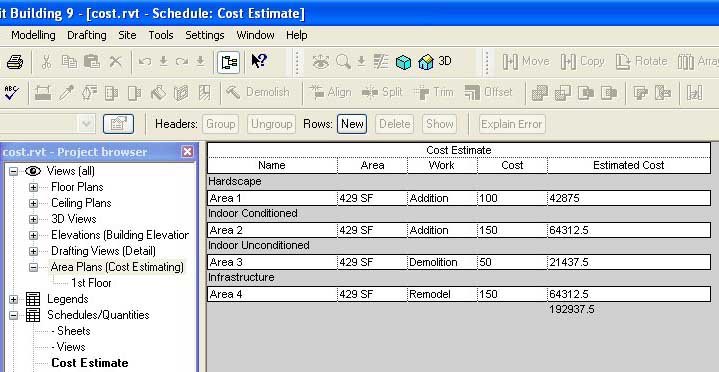
If you want to estimate the total cost of the project per square foot then setup an Area Plan scheme and Area schedule:

1. Goto Settings... Room and Area Settings... Area Schemes... New and add a scheme called Cost Estimating.
2. Goto View... New... Area Plan... Type... Cost Estimating... and break the project down into areas of differing cost per square foot.
3. To estimate the total cost goto View... New... Schedule/Quantities... Areas (Cost Estimating) and start adding the parameters you need to estimate the total cost.
4. You'll have to add a Calculated Value called "Estimated Cost" with a formula that looks something like (Area * Cost / 1 SF) so you can total the cost of each area.


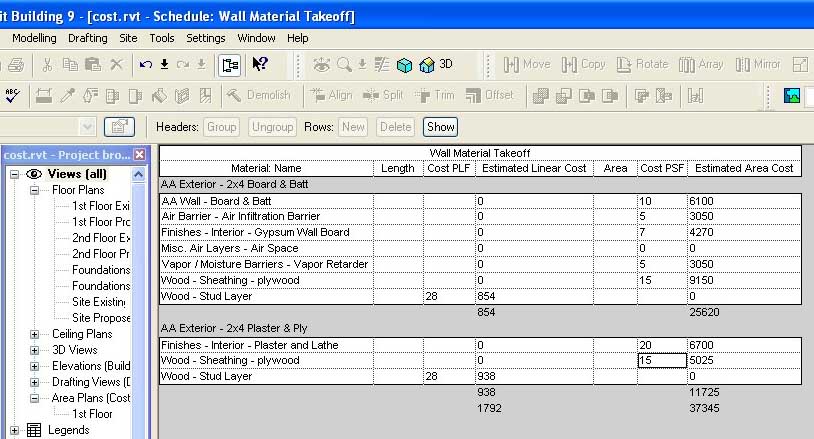
If you want to estimate the total cost of the project by materials used then setup one of Revit's new Material Takeoff Schedules:

1. Some materials are estimated in Cost Per Linear Foot, some in Cost Per Square Foot, some in Cost Per Cubic Yard so I would first setup new project parameters for each estimate (Cost PLF & Cost PSF).
2. To calculate the total cost of materials goto View... New... Material Takeoff... Walls and start adding the parameters you need to calculate the cost of materials used in the walls.
3. You'll have to add a Calculated Value called "Estimated Area Cost" with a formula that looks something like (Area * Material: Cost PSF / 1 SF) so you can total the cost of material measured by area... (Length * Material: Cost PLF / 1') for "Estimated Linear Cost."
4. Now you can type in the cost for each material in the schedule. If you goto Setting... Materials... Identity you can also add a cost to each material here.


If you want to estimate the total cost of the project by unit cost then setup a Multi-Category Schedule:

1. To calculate the total cost of the project (by unit cost) goto View... New... Schedule/Quantities... Multi-Category and start adding the parameters you need to calculate the cost of all elements used. If you goto the Type Properties of each door, window, wall type, etc. you can also set a cost per unit here.
2. Now you can type in the cost for each material in the schedule.
3. Do not use Material Takeoff Schedule for estimating the total unit cost of doors and windows. Only use Material Takeoff Schedules when you want to schedule every material that is used in the door/window family separately.

If you want to do cost estimating outside of Revit you might try exporting the Revit model as an ODBC and importing the database into Timberline. Haven't tried it yet myself.

Friday, June 09, 2006

Sort by Submittal Package

Quite often we need to organize our plots for different submittal package sets (Schematic Design Presentation, Land Use Permit, Plan Check, Construction Admin, etc). Revit has the built-in ability to do this. Just goto File... Print... Selected views/sheets... Select... Here you can check off the sheets you want to plot and you can save those changes for different submittal packages. Unfortunately, there's not much you can do about any annotation references that cross over between submittal packages.

We decided that we also wanted to be able to sort the sheets in our project browser (and our drawing lists) by Submittal Package. It's possible but it's not an easy thing to do.

First, go to Settings... Project Parameters... Add. Now type in the Name "Submit for SD"... select the Yes/No Parameter... and check the category Drawing Sheets.

Now goto Settings... Browser Organization... Sheets... New. Call your new Browser Tree "Submit for SD". Goto the Filter tab... Filter by Submit for SD... Equal To... Yes. Now exit the Browser Organizer (while saving changes), right click on Sheets (all) in your project browser, and click on Properties. You'll notice your new Browser Tree "Submit for SD" is in the Type drop down list. Select the "Submit for SD" option.

Now goto View... New.. Drawing List... and add ALL the parameters (including Submit for SD). Leave the name Drawing List. If you look at your new schedule you'll notice that under the column Submit for SD you can check which sheets you want to apply to your Schematic Design Submittal Package. If the check boxes are greyed out just select them one at a time to active them. You might also notice that as you check and uncheck different sheets that your list of sheets in the project browser changes too.

Now that we can sort our project browser by Submittal Package we have a new problem. The Drawing List on our coversheet shows ALL the drawings from ALL the different packages. We're going to need a different Drawing List for each submittal package. You'll probably want different Coversheets for each submittal package too so set up a coversheet for each of your submittal packages starting with an SD coversheet.

Goto View... New.. Drawing List... and add the parameters: Submit for SD, Sheet Number, and Sheet Name. Click on the Formatting tab and select Submit for SD. Make this parameter a Hidden Field. Click on the Filter Tab and Filter by Submit for SD... equals... YES. Select OK and rename this drawing list "Drawing List - SD". Now you can do the same for each of your submittal packages (LUP for Land Use Permit, ConDocs for construction documents, etc). Drag each of your new Drawing Lists into their respective coversheets.

Now if Autodesk would add the Print Set parameter to Drawing Lists fields then we could coordinate the sheet browser, drawing list, AND the Print Range settings.