Brian Tuffin wrote an interesting blog post on Modifying the Split Command. By editing the Revit.ini file one can add the tool "Split Walls with Gap."
This tip was also posted by Chad Smith on AUGI.
Thursday, June 01, 2006


Wednesday, May 31, 2006
Rooms in a split level environment
Are your room tags not working? Maybe the new room tool could use a little explaining. It sure needed explaining to me.
1. The cut plane (orange) of your floor plan view range must cut through ALL the rooms you want to tag in that view. Setting the proper cut plane height is especially critical if you have a split level project.
1. The cut plane (orange) of your floor plan view range must cut through ALL the rooms you want to tag in that view. Setting the proper cut plane height is especially critical if you have a split level project.


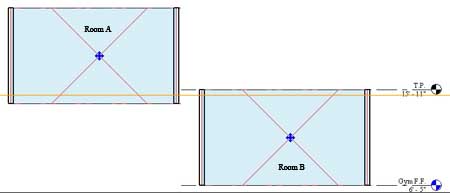
2. If your cut plane is below the lower limit of a room, tags in that room may only display a ? instead of the room name. If this happens then you'll have to raise your cut plane so that it intersects the room, delete the old room tag, and replace the room tag.
3. If your cut plane is above the upper limit of a room you simply won't be able to tag the room.
4. Once you have your cut plane at a height that intersects the rooms you want to tag THEN you place your plan regions where the cut plane is not properly intersecting windows and doors.
5. Rooms will ignore the cut plane of plan regions.
Tuesday, May 30, 2006
Anchor vs. Pin Position
Two tools some beginners aren't aware of are the Anchor Symbol and Pin Position Tools.
Draw three walls, in plan view, parallel to eachother. Dimension the distances between each wall with one dimension string. And set the two lengths EQ. Now delete the dimension. You'll get the warning message "A Dimension with Lock and/or EQ Constraints is being deleted." Select OK to keep the walls constrained.
You'll notice now that when you select one of the walls a blue anchor symbol shows. If you decide to move the selected wall this symbol tells you which of the three walls will remain anchored while the other two constrained walls stretch equadistant to eachother. You can select which wall will be anchored by dragging the anchor symbol to one of the other walls.
Draw three walls, in plan view, parallel to eachother. Dimension the distances between each wall with one dimension string. And set the two lengths EQ. Now delete the dimension. You'll get the warning message "A Dimension with Lock and/or EQ Constraints is being deleted." Select OK to keep the walls constrained.
You'll notice now that when you select one of the walls a blue anchor symbol shows. If you decide to move the selected wall this symbol tells you which of the three walls will remain anchored while the other two constrained walls stretch equadistant to eachother. You can select which wall will be anchored by dragging the anchor symbol to one of the other walls.
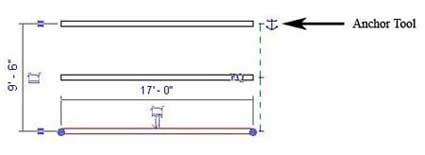
Now lets say you decide you want to use the Pin Position tool (a pin icon located in the toolbar). Once pinned a wall will not move regardless of which wall has the anchor symbol. The pin position tool overrides the anchor tool.
Thursday, May 25, 2006
Family Specifications Manual?
Robert of Philadelphia, PA works for an office that has written an in house specification for family creation. Very interesting read.
Revit Standardization: Family Specs
Revit Standardization: Family Specs
Wednesday, May 24, 2006
Electrical Symbols
We have a very large residence that requires an overall coordination plan at 1/8" scale and 5 individual quadrants at 1/4" scale because a complete 1/4" scale plan isn't going to fit on a 30x42 sheet.
Well after placing the electrical outlets that come with Revit we noticed that in plan view the outlet symbol doesn't scale when you change the floor plan scale from 1/4" to 1/8". In other words the symbols appear much larger relative to the floor plan when viewed at 1/8" scale. The reason is because the plan view symbol nested in Revit's electrical outlets are Generic Annotations and by design Generic Annotations don't scale when you change a view's scale. Well we wanted the symbols to scale with the floor plan so they wouldn't overwhelm the drawing at 1/8" scale so we drew our outlet symbols as Generic Models instead. Generic Models will scale with the rest of the floor plan.
Now that we've got our outlets and switches scaling the way we like we have a new problem. The text for our Switches (Dimmer, Door-op, Four-way, etc) doesn't show anymore. That's because when we were using nested Generic Annotations, text was supported. Now that we are using nested Generic Models for our electrical symbols text isn't supported. The solution is to create your text in Autocad, import the dwg into your Generic Model, import your Generic Model into your Electrical Family, and there you have it.
Well after placing the electrical outlets that come with Revit we noticed that in plan view the outlet symbol doesn't scale when you change the floor plan scale from 1/4" to 1/8". In other words the symbols appear much larger relative to the floor plan when viewed at 1/8" scale. The reason is because the plan view symbol nested in Revit's electrical outlets are Generic Annotations and by design Generic Annotations don't scale when you change a view's scale. Well we wanted the symbols to scale with the floor plan so they wouldn't overwhelm the drawing at 1/8" scale so we drew our outlet symbols as Generic Models instead. Generic Models will scale with the rest of the floor plan.
Now that we've got our outlets and switches scaling the way we like we have a new problem. The text for our Switches (Dimmer, Door-op, Four-way, etc) doesn't show anymore. That's because when we were using nested Generic Annotations, text was supported. Now that we are using nested Generic Models for our electrical symbols text isn't supported. The solution is to create your text in Autocad, import the dwg into your Generic Model, import your Generic Model into your Electrical Family, and there you have it.
Monday, May 22, 2006
A New Blogger
Green Revit is a new blog, with a focus on the correlation between Revit and green building design.
Friday, May 19, 2006
Another Revit Wishlist
A lot of people post wishlists on their blogs. Here's my contribution:
- Speed... Revit can be too slow for many users.
- Wall intersections still need a little improving when phases are applied. Right now when a demo'd wall, new wall, and existing wall intersect at a "T" junction the intersection doesn't clean up in all phases.
- Building Pads are not phase aware but should be
- Schedules should be able to reference window sill/head/jamb details. Right now we have to manually input the detail number and sheet number into our schedules.
- Add a scale factor for families. We have columns that we would like to scale while keeping the proportions of all the shapes constant. A global scale factor parameter would do the trick.
- Add Variable Transparency option to Filled Regions
- Add system families, annotations, titleblocks, and detail component families to Multi-Category Schedules so we can manage loaded families utilizing schedules. AND ability to add Project Parameters to titleblocks and annotations for same purpose.
- A Family manager for changing subcategory names, flagging families for correction, etc.
- A divide tool for splitting walls and lines into equal parts
- A stretch tool similar to AutoCAD
- Improved spline tools for trimming, filleting, and splitting splines. Right now moving the endpoint of a spline moves all the points and you can't trim, fillet, or split splines.
- When demolishing a door, the infill wall Revit automatically places should be optional.
- Generic Model Opening and Void edges don’t show when phases are applied.
- Elevations should split/jog similar to the Section Tool.
- Irregularly shaped Crop Regions should be supported like the vpclip tool in AutoCAD.
- Crop regions that plot at varying thickness for cropping interior elevations.
- A pop up message at the other user's computer when you put in a request for worksets.
- Expanded Filter Selection Tool: adding ability to sort annotation and model objects by level, phase and worksets.
- Add Text subcategories for turning selective text on and off.
- Separate interior and building elevation tags so one can selectively turn off one OR the other in Visibility/Graphics... Annotation Categories.
- Tools for illustrating and calculating egress
- Submittal Package Utilities. Ability to sort sheets, drawing list, and print range by type of submittal package. A host of submittal package sorting and documenting tools would be of great benefit. When we submit a package to a client, contractor, consultant, or agency it would be of great benefit if we could just go to one place and check off the drawings that we want to plot, record for future reference, list on our coversheets, and display in our sheet browser.
- When walls of different types meet Revit should cleanup the connection in elevation.
- Key Plans tool needed (we have a large floor plan that is divided between sheets)
- Separate interior and building elevation tags in Visibility/Graphics.
- Separate Detail and Model Lines in Visibility/Graphics.
Monday, May 15, 2006
Coarse, Medium, and Fine - Wall Patterns
You might notice that wall patterns disappear when you're switching between Coarse, Medium, and Fine detail levels.
Let's say you want to show your view (plan/section) in Coarse detail level:
To edit the pattern select the wall...
go to the wall's properties... and Edit/New...
Here you can change the Coarse Scale Fill Pattern parameter.
Now let's say you've switch your view to Medium or Fine detail level:
To edit the pattern select the wall...
go to the wall's properties... and Edit/New...
edit the structure...
and select your new material...
Here you can select your new cut pattern from available fill patterns.
I'm not sure why parameters for Revit's coarse, medium, and fine detail levels cut pattern settings are separated but this is a common question so I thought I'd post the answer.
Let's say you want to show your view (plan/section) in Coarse detail level:
To edit the pattern select the wall...
go to the wall's properties... and Edit/New...
Here you can change the Coarse Scale Fill Pattern parameter.
Now let's say you've switch your view to Medium or Fine detail level:
To edit the pattern select the wall...
go to the wall's properties... and Edit/New...
edit the structure...
and select your new material...
Here you can select your new cut pattern from available fill patterns.
I'm not sure why parameters for Revit's coarse, medium, and fine detail levels cut pattern settings are separated but this is a common question so I thought I'd post the answer.
Friday, May 12, 2006
Google's 3D Warehouse
You can now get 3D content from Google in the form of SketchUp files. Revit 9 supports the importing of SketchUp files. There's not a lot of content yet but I'll be watching this.
Google's 3D Warehouse
Google's 3D Warehouse
Monday, May 01, 2006
Upgrading Families
Our family library has grown considerably and we were tired of seeing "THIS IS A ONE TIME UPGRADE PROCESS ONLY" every time we opened a family file that was saved in Revit 8.1.
Well, Autodesk has a Family Upgrade Utility for upgrading all of your old family files to the new version. Make sure you backup your library before trying this. This also doesn't work over a network so you'll have to copy your library to your local harddisk before executing the procedure.
Well, Autodesk has a Family Upgrade Utility for upgrading all of your old family files to the new version. Make sure you backup your library before trying this. This also doesn't work over a network so you'll have to copy your library to your local harddisk before executing the procedure.
Subscribe to:
Comments (Atom)